
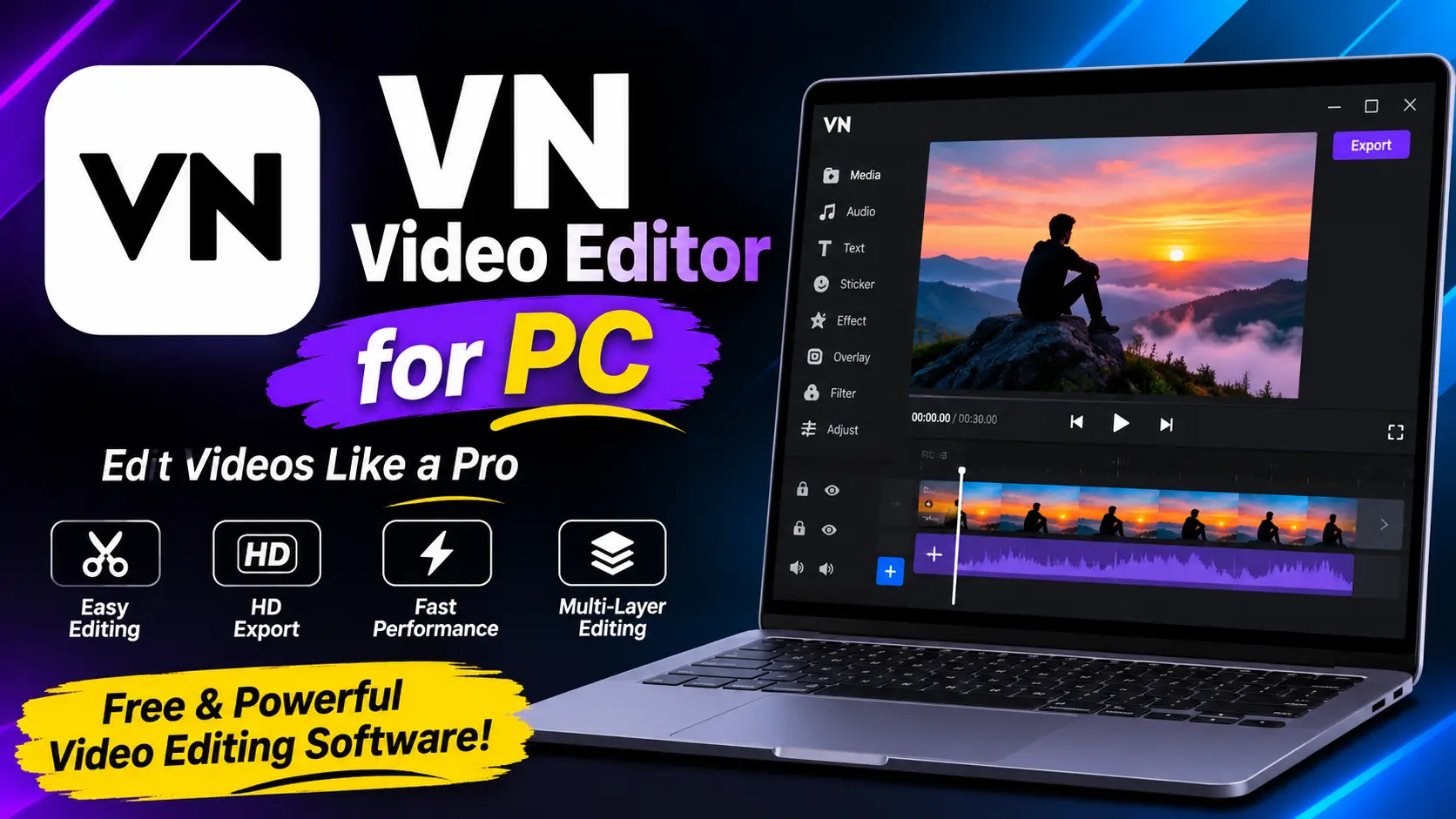
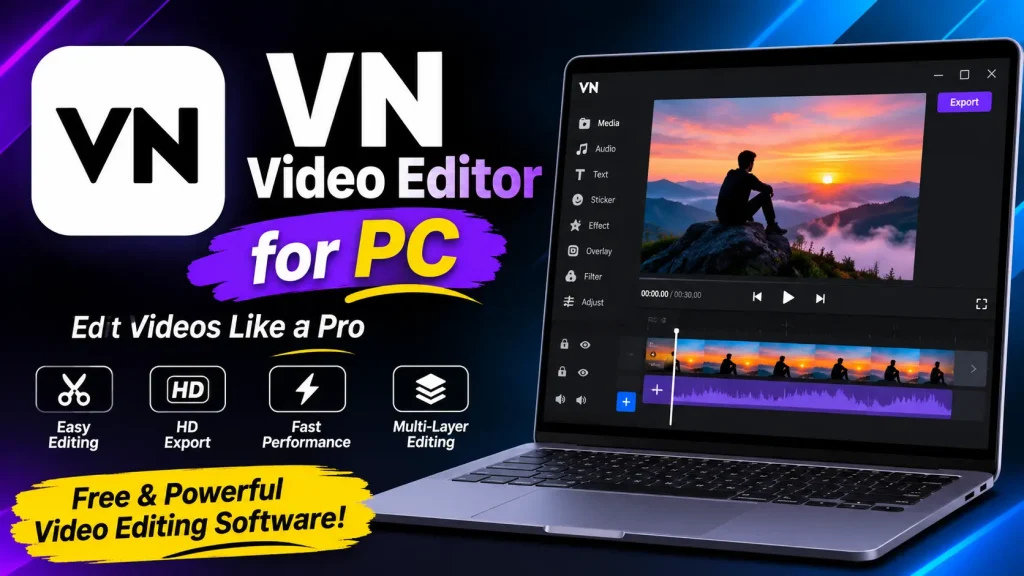
Video editing has become an important part of creating content for YouTube, Instagram, TikTok, and other social media platforms. Many creators use mobile editing applications because they are simple and convenient. However, some users prefer editing videos on a larger screen. This is why VN Video Editor for PC is a popular search among beginners and content creators.
VN Video Editor is known for its user-friendly editing interface, timeline controls, transitions, filters, and other creative tools. Although its mobile application is designed primarily for Android and iOS devices, PC users can explore different ways to use VN on a Windows computer.
In this guide, you will learn about VN Video Editor features, installation methods, system requirements, advantages, and common troubleshooting solutions.
What Is VN Video Editor for PC?
VN Video Editor for PC refers to using the VN video editing application or its compatible version on a Windows desktop or laptop.
VN is designed to help users create and edit videos without needing advanced professional editing knowledge. Its editing tools make it useful for social media videos, short clips, personal projects, and other creative content.
The availability of an official Windows version may differ from mobile app availability. Therefore, check VN’s official website or supported app stores for current PC compatibility before downloading anything.
If a compatible Windows version is not available, an Android emulator may provide another way to run the Android application on a computer.
Main Features of VN Video Editor
VN offers several editing tools that help users create attractive videos.
1. Multi-Track Timeline
The timeline allows users to organize video clips, audio, images, and other editing elements. Multiple tracks can make it easier to manage different parts of a project.
2. Video Transitions
Transitions help connect two clips smoothly. You can experiment with available transition effects to make your videos look more professional.
3. Filters and Effects
VN provides visual filters and effects that can change the appearance and mood of a video. These tools are useful for creating different styles of content.
4. Text and Subtitle Editing
Text tools allow users to add titles, captions, and other written elements to videos. This is helpful when creating tutorials, social media content, and informational clips.
5. Music and Audio Editing
You can add background music, sound effects, and other audio elements to supported projects. Audio editing helps make videos more engaging.
6. Speed Control
Speed controls allow users to create slow-motion or fast-motion effects. These effects can add creativity to travel videos, sports clips, and short social media videos.
7. Export Options
VN provides export settings for saving completed projects. Available resolution, frame rate, and other options may depend on the application version and device.
How to Download VN Video Editor for PC
There are different ways to use VN on a Windows computer. Choose a method based on the software currently supported by your device.
Method 1: Check for an Official Windows Version
This is the preferred method if VN provides a compatible Windows application.
- Open your web browser.
- Visit the official VN Video Editor website.
- Look for the Windows or PC download option.
- Check the supported Windows versions and system requirements.
- Download the installer if an official compatible version is available.
- Open the installer and follow the setup instructions.
- Launch the application after installation.
Always confirm that the download comes from an official source.
Method 2: Use an Android Emulator
If you want to use the Android version of VN on your PC, an Android emulator may help.
Follow these steps:
- Choose a reputable Android emulator compatible with your Windows computer.
- Visit its official website and download the installer.
- Install the emulator.
- Open it and complete the initial setup.
- Access its supported app store.
- Search for the official VN Video Editor application.
- Install the app and open it.
The Android interface may look different on a desktop, and some editing controls may be less convenient with a mouse and keyboard.
System Requirements for VN Video Editor on PC
System requirements depend on the installation method and the complexity of your video projects.
For a smooth editing experience, consider the following:
- Windows 10 or Windows 11 for compatible PC software.
- A modern multi-core processor.
- Sufficient RAM for editing and multitasking.
- Enough free storage for video files and exported projects.
- Updated graphics drivers.
- A stable internet connection for downloading software and resources.
If you use an Android emulator, check its official hardware requirements as well.
Benefits of Using VN Video Editor on a PC
Bigger Editing Workspace
A computer monitor provides more screen space, making it easier to view clips and manage editing timelines.
Convenient File Management
You can organize video footage, audio files, images, and finished projects in your computer’s folders.
Keyboard and Mouse Controls
A keyboard and mouse can make certain editing tasks more convenient, depending on the application and emulator compatibility.
Better Multitasking
You can edit videos while using other desktop applications, browsing websites, or managing social media content.
Useful for Content Creators
VN can help creators prepare short videos, tutorials, promotional clips, and other social media content.
VN Video Editor for PC vs Mobile
| Feature | PC | Mobile |
|---|---|---|
| Screen size | Larger display | Smaller display |
| File management | Desktop folders | Mobile storage |
| Editing controls | Mouse and keyboard may be available | Touch controls |
| Multitasking | Convenient | Device-dependent |
| Portability | Depends on laptop or desktop | Easy to carry |
| Installation | Depends on PC compatibility | Android or iOS app |
Both options can be useful. The best choice depends on your editing style and device.
Is VN Video Editor Safe to Download?
VN should be downloaded from its official website or trusted app stores. Avoid unknown websites offering modified or unofficial installation files.
Before installing any software:
- Verify the download source.
- Check the application’s permissions.
- Avoid suspicious installers.
- Keep your operating system updated.
- Use trusted antivirus protection.
- Do not download files that promise unauthorized premium features.
These precautions can help protect your computer and personal files.
Common Problems and Their Solutions
VN Video Editor Is Not Installing
Check your Windows compatibility, available storage, and installer source. Make sure you are following the correct installation instructions.
VN Is Running Slowly
Close unnecessary applications, free up system memory, and check whether your computer meets the software requirements.
Video Export Is Taking Too Long
Large video files and high-resolution export settings can increase processing time. Try a shorter project or a lower export setting.
Emulator Is Not Opening
Update the emulator, check virtualization settings if required, and restart your computer.
Frequently Asked Questions
Can I download VN Video Editor for PC?
Check the official VN website for current Windows availability. If no compatible PC version is offered, an Android emulator may be an alternative.
Is VN Video Editor available for Windows 10?
Compatibility depends on the officially supported version. Check the latest requirements before installing.
Can I use VN Video Editor on a laptop?
Yes, if your laptop supports an official PC version or can run a compatible Android emulator.
Is VN Video Editor free?
VN offers free editing features, although specific tools and availability may vary by version and platform.
Can beginners use VN Video Editor?
Yes. Its straightforward editing interface makes it a useful option for people learning basic video editing.
Final Words
VN Video Editor for PC is a useful topic for creators who want to edit videos on a larger screen. Its editing tools, including transitions, filters, text, audio controls, and speed adjustments, make it a popular choice among mobile video editors.
Before downloading, check whether an official Windows version is available for your computer. You can also explore the Android emulator method if you specifically need the mobile application interface. Always download software from trusted sources and choose the installation method that best suits your device.