
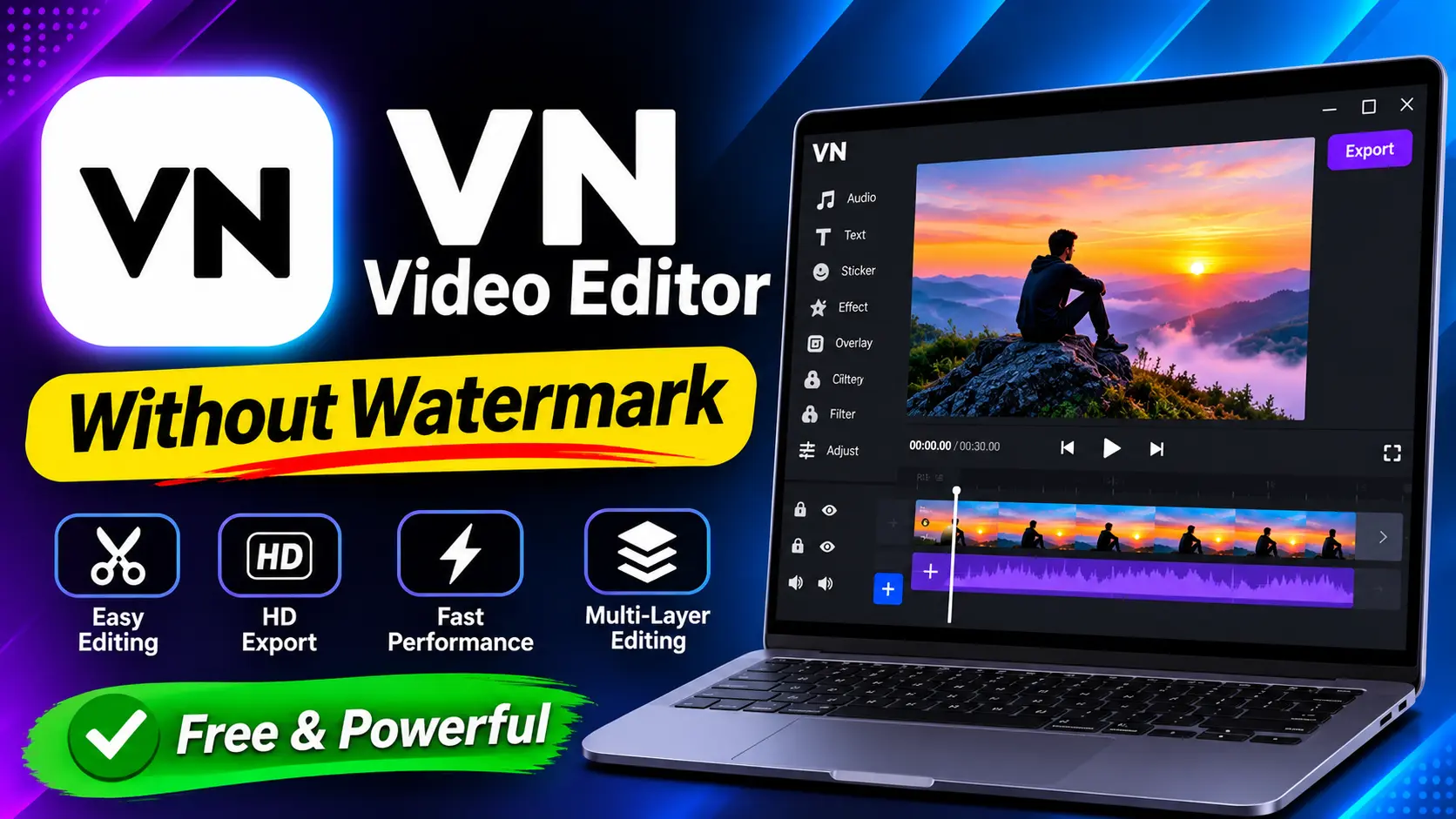
Video editing is an important part of creating content for YouTube, Instagram, TikTok, Facebook, and other social media platforms. Many creators want their videos to look clean and professional without unnecessary logos or watermarks. This is why VN Video Editor Without Watermark is a popular search among people looking for a simple video editing application.
VN Video Editor is a well-known editing app that provides tools for trimming clips, adding music, applying filters, creating transitions, and adjusting video speed. It is especially useful for beginners who want to create attractive videos without learning complicated editing software.
In this guide, you will learn about VN Video Editor, its watermark options, editing features, export process, and useful tips for creating videos without unwanted branding.
What Is VN Video Editor Without Watermark?
VN Video Editor Without Watermark refers to using VN to create and export videos without an unwanted watermark appearing on the final video.
VN provides editing tools that help users create different types of content, including short videos, social media reels, tutorials, travel videos, and personal projects.
Watermark behavior and export options can depend on the application version and project settings. Users should check the current official app settings to understand whether a logo or outro is included in their exported video.
Unlike some editing applications, VN has been popular among creators looking for a straightforward editing experience. Always use the official version to access supported features and updates.
Main Features of VN Video Editor
VN includes several useful tools for creating engaging videos.
1. Clean Video Editing
VN offers a simple editing workspace where users can arrange clips, trim unwanted sections, and create videos according to their requirements.
2. Multi-Layer Timeline
The timeline helps users organize video clips, images, text, and audio. Multiple layers make it easier to manage different elements in a project.
3. Filters and Effects
Users can apply visual filters and effects to change the appearance of their videos. These options can help create different moods and styles.
4. Smooth Transitions
Transitions help connect separate video clips. VN provides transition options that can make videos look more polished and engaging.
5. Text and Subtitle Tools
You can add titles, captions, and subtitles to your videos. This is useful for tutorials, educational clips, and social media posts.
6. Music and Sound Effects
VN supports adding audio elements to projects. Background music and sound effects can make videos more interesting.
7. Speed Adjustment
The speed-control tools help create slow-motion and fast-motion effects. These are useful for creative edits and short-form content.
8. Export Settings
VN offers export controls for saving completed videos. Available resolution and frame-rate options may depend on the device and app version.
How to Export Videos Without a Watermark in VN
If you want a clean video without unnecessary branding, follow these general steps:
- Open the official VN Video Editor application.
- Create a new project or open an existing one.
- Import the video clips and images you want to edit.
- Arrange the clips on the editing timeline.
- Add music, text, filters, and transitions if required.
- Review the timeline for any automatically added ending or logo clip.
- Remove an optional VN ending clip if you do not want it in your project.
- Preview the complete video.
- Open the export settings.
- Select your preferred available resolution and frame rate.
- Export and save the video to your device.
Important: Removing an optional ending clip is different from removing a watermark embedded in a video. If a logo is permanently embedded, check the official app’s available options rather than using unofficial tools.
Best Export Settings for High-Quality Videos
Choosing suitable export settings can improve the appearance of your final video.
Resolution
- 720p: Suitable for smaller files and basic sharing.
- 1080p: A good choice for most social media videos.
- 4K: Useful for compatible devices and high-resolution projects.
Frame Rate
Choose a frame rate that matches your original footage. Common options include 24 FPS, 30 FPS, and 60 FPS, depending on the project.
Video Format
MP4 is widely supported across social media platforms and most modern devices.
The best settings depend on the original footage, platform requirements, and available export options.
Benefits of Using VN Without an Unwanted Watermark
Professional Appearance
A clean video can look more suitable for personal projects, presentations, and social media content.
Better Branding
Creators can add their own logos, channel names, and branding instead of displaying unwanted elements.
Social Media Friendly
Watermark-free exports can be useful when preparing content for multiple platforms, provided you follow each platform’s content policies.
Easy Editing Process
VN’s editing interface makes it possible for beginners to create videos without advanced technical knowledge.
VN Video Editor vs Other Editing Apps
| Feature | VN Video Editor | Other Editing Apps |
|---|---|---|
| Editing interface | Beginner-friendly | Varies |
| Filters | Available | Varies |
| Transitions | Available | Varies |
| Audio editing | Available | Varies |
| Text tools | Available | Varies |
| Export options | Version-dependent | Varies |
| Watermark policy | Check current app settings | Varies |
VN is worth considering if you want an accessible editing application with useful creative tools.
Is VN Video Editor Safe to Download?
For a safer experience, download VN from its official website or trusted app stores. Avoid modified APK files and unknown download websites that promise unlocked features or guaranteed watermark removal.
Follow these precautions:
- Download the application from a trusted source.
- Check app permissions before installation.
- Keep the application updated.
- Avoid suspicious modified versions.
- Do not provide personal information to unknown websites.
- Use trusted editing tools for your video projects.
Official applications are generally the better choice for security, reliability, and updates.
Common VN Video Editor Problems and Solutions
Watermark or Ending Clip Appears
Check the project timeline for an optional ending clip or logo element. Remove it if the app allows it.
Video Quality Looks Poor After Export
Check your export resolution and frame rate. Make sure they are suitable for your original footage.
Export Is Taking Too Long
Close unnecessary applications, free up device storage, and try exporting a shorter project.
VN Is Not Working Properly
Restart the application, check for updates, and make sure your device has enough free storage.
Frequently Asked Questions
Does VN Video Editor export videos without a watermark?
Watermark and ending behavior can depend on the app version and project settings. Check the current export options and timeline before saving.
Is VN Video Editor free?
VN offers free editing features. The available tools and options may vary depending on the platform and version.
Can I remove the VN ending logo?
If the logo appears as an optional ending clip in the timeline, you may be able to remove that clip before exporting.
Does VN support HD video export?
VN provides video export options, but available resolutions depend on the application version and device.
Is VN Video Editor good for beginners?
Yes. Its accessible interface and editing tools make it a useful option for people learning video editing.
Final Words
VN Video Editor Without Watermark is a useful search topic for creators who want clean and professional-looking videos. VN offers editing tools such as filters, transitions, text, audio controls, and export settings that can help users create engaging content.
Before exporting, review your project timeline and check the available watermark and ending options in the official application. Download VN from trusted sources to enjoy a safer and more reliable editing experience.