
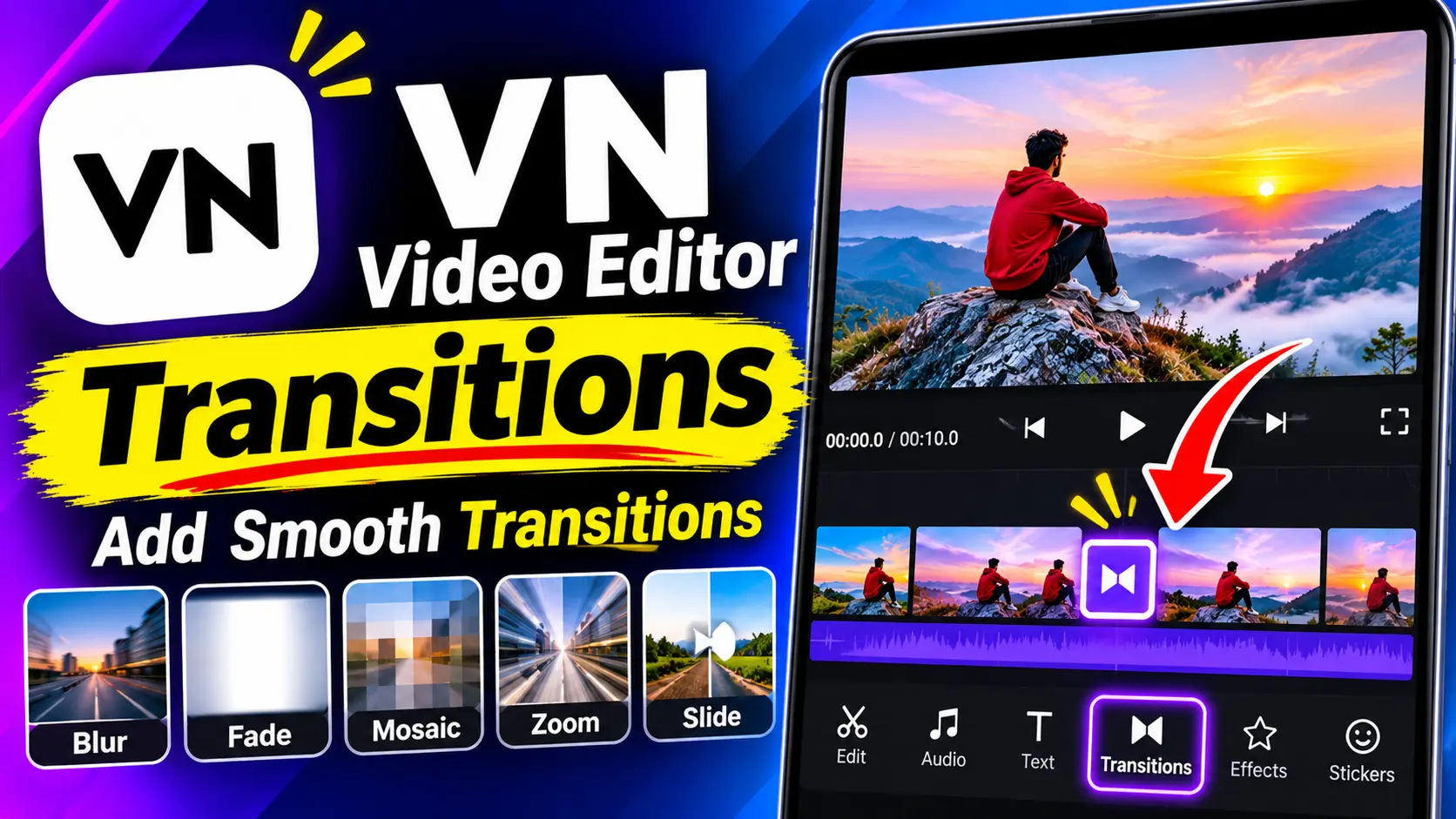
Video transitions are an important part of creating attractive and professional-looking videos. Whether you are making Instagram Reels, YouTube Shorts, TikTok videos, travel clips, or cinematic edits, smooth transitions can make your content more engaging.
Many creators use VN Video Editor Transitions to connect video clips, improve storytelling, and create interesting visual effects. VN Video Editor provides editing tools that help beginners and experienced creators arrange clips and apply different transition styles.
In this guide, you will learn what VN transitions are, how to add them to videos, which transition styles you can try, and how to create smoother edits.
What Are VN Video Editor Transitions?
VN Video Editor Transitions are visual effects used to connect one video clip to another. Instead of showing a sudden change between two scenes, a transition creates a smoother or more creative connection.
For example, when editing a travel video, you can use a transition to move from a beach scene to a mountain view. Similarly, transitions can make photo slideshows, music videos, and social media edits more interesting.
VN provides transition options that allow users to experiment with different visual styles. Available effects may vary depending on the application version.
Best Types of VN Video Editor Transitions
Here are some popular transition styles you can explore while editing with VN.
1. Zoom Transition
Zoom transitions create the appearance of moving closer to or farther away from a scene. They are useful for energetic social media edits, fashion videos, and music clips.
2. Blur Transition
Blur effects create a soft visual change between clips. They can help connect scenes smoothly and create a cinematic appearance.
3. Slide Transition
Slide transitions move one scene across the screen to reveal another. They work well for travel videos, photo collections, and presentations.
4. Fade Transition
Fade transitions gradually change between scenes. A fade can be useful for opening sequences, closing scenes, and emotional video content.
5. Spin Transition
Spin-style transitions create a rotating visual movement between clips. They are often used in creative edits and energetic short videos.
6. Glitch Transition
Glitch effects create a digital distortion appearance. They are suitable for gaming videos, technology content, and modern music edits.
7. Flash Transition
Flash transitions use a brief bright effect to connect scenes. They can work well with music beats and fast-paced edits.
How to Add Transitions in VN Video Editor
Adding transitions between clips is simple. Follow these general steps:
- Open the VN Video Editor application.
- Create a new project.
- Select two or more video clips from your gallery.
- Add the clips to the editing timeline.
- Locate the transition control between two clips.
- Tap the transition control.
- Explore the available transition effects.
- Select the style you want to use.
- Adjust the transition duration if the option is available.
- Preview the result.
- Repeat the process between other clips if needed.
- Export your completed video.
The exact position and names of editing controls may vary between VN versions.
How to Create Smooth Transitions in VN
Choosing an effect is only one part of creating a good transition. You should also pay attention to clip timing and movement.
Match the Movement
Try connecting clips that have similar camera movements or subject positions. This can make the transition feel more natural.
Adjust the Duration
A transition that is too long can make a video feel slow. A very short transition may look abrupt. Experiment with different durations until you find a suitable result.
Match Transitions with Music
For music videos and Reels, try placing transitions on important beats. This can create a more rhythmic editing style.
Use Similar Colors
Clips with similar lighting and color tones can connect more naturally. You can use filters and color adjustments to create a consistent appearance.
Preview Every Change
Always preview the transition before exporting. Make sure it does not interrupt the action or distract viewers from the main content.
Best VN Transitions for Different Video Types
Different videos need different transition styles.
| Video Type | Suggested Transition Style |
|---|---|
| Instagram Reels | Zoom, Flash, Spin |
| Travel Videos | Fade, Slide |
| Cinematic Videos | Fade, Blur |
| Gaming Videos | Glitch, Zoom |
| Photo Slideshows | Fade, Slide |
| Music Videos | Flash, Beat-Synced Cuts |
| Tutorials | Simple Fade or Cut |
These are creative suggestions rather than fixed rules. Choose effects that match your content.
Benefits of Using VN Video Transitions
Better Video Flow
Transitions help connect different clips and make the overall video easier to follow.
More Creative Editing
Different effects allow creators to experiment with visual storytelling and develop their own editing style.
Professional Appearance
Well-timed transitions can make simple videos look more polished.
Social Media Content
Transitions are useful for creating engaging short-form videos for platforms such as Instagram, TikTok, and YouTube Shorts.
Beginner-Friendly Editing
VN’s timeline-based editing workflow helps beginners learn how different clips and effects work together.
Common Transition Problems and Solutions
Transition Is Not Appearing
Make sure you have added at least two clips to the timeline and selected the transition control between them.
Transition Looks Too Fast
Try increasing the duration if the application provides that option.
Video Looks Too Busy
Using too many different effects can distract viewers. Choose a small number of transition styles and use them consistently.
VN Is Running Slowly
Close unnecessary applications, check available storage, and restart VN. Large projects may require more device resources.
Export Quality Looks Poor
Check the export resolution and frame-rate settings. Use suitable settings for your original footage and target platform.
Tips for Professional VN Transition Editing
- Avoid using a different transition after every clip.
- Match transitions with the video’s music and rhythm.
- Keep the main subject visible.
- Use simple effects for professional-looking content.
- Choose effects according to the video’s mood.
- Use high-quality original video clips.
- Check the complete video before exporting.
- Save a backup of important editing projects.
Remember, good editing is not about using the maximum number of effects. It is about choosing the right effects at the right moments.
Frequently Asked Questions
What are VN Video Editor Transitions?
They are visual effects that connect two video clips and create a smoother or more creative scene change.
How do I add transitions in VN?
Import your clips, open the transition control between them, select an available effect, and preview the result.
Which VN transition is best for Reels?
Zoom, flash, and spin-style effects can work well for energetic Reels, depending on the video content.
Can I adjust transition duration in VN?
Many transition controls offer duration adjustments. Available options may vary by app version and effect.
Are VN transitions free?
Availability depends on the current application version and the specific editing resources offered.
Is VN Video Editor good for beginners?
Yes. Its timeline and editing tools make it a useful application for learning basic video editing and transitions.
Final Words
VN Video Editor Transitions can help you create smoother, more creative, and visually attractive videos. From zoom and blur effects to fade, slide, and glitch styles, different transitions offer many ways to connect scenes.
For the best results, choose effects that match your video style, adjust their timing carefully, and avoid unnecessary visual effects. With practice, you can create engaging videos for social media and other creative projects using VN Video Editor.