
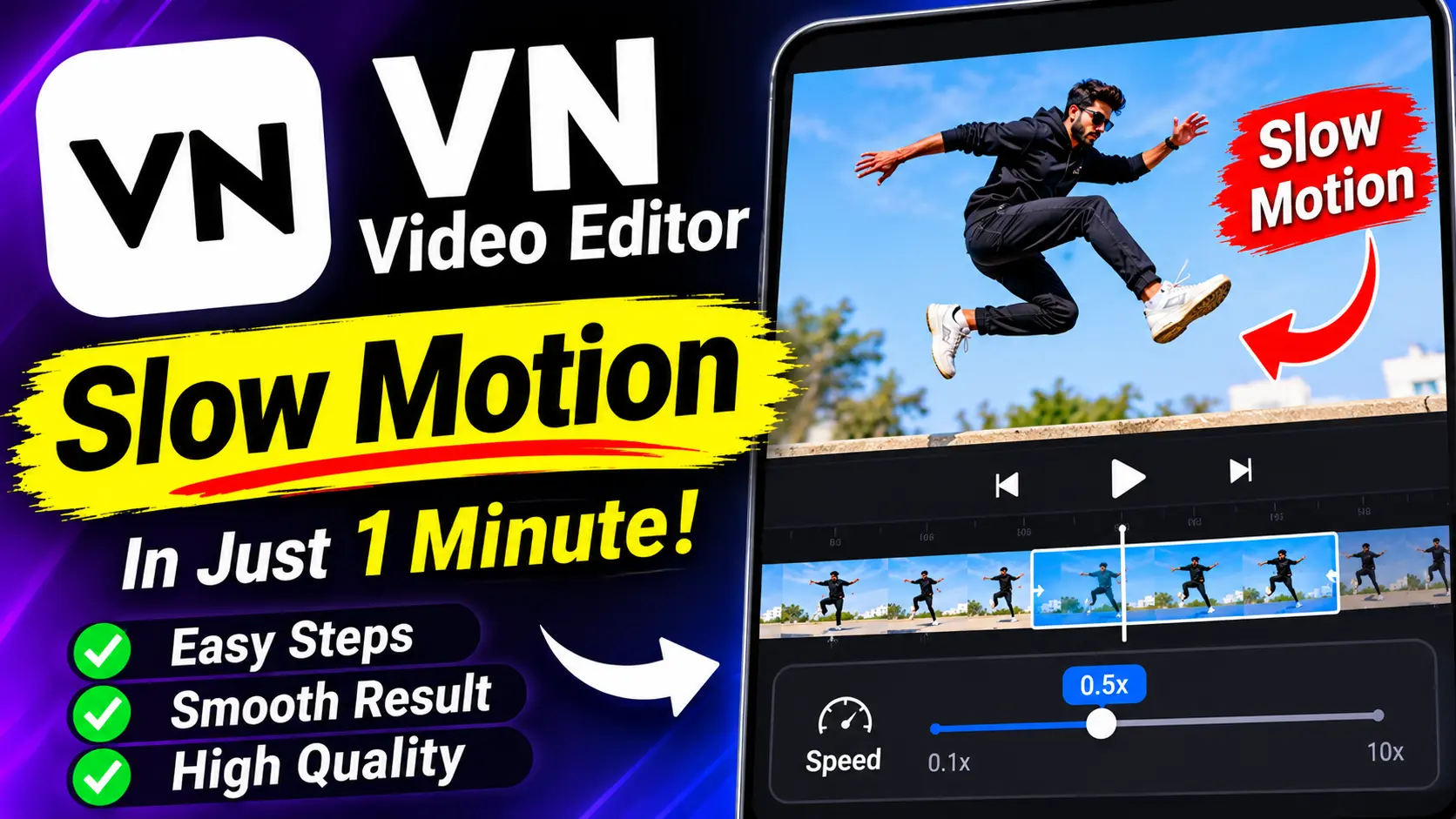
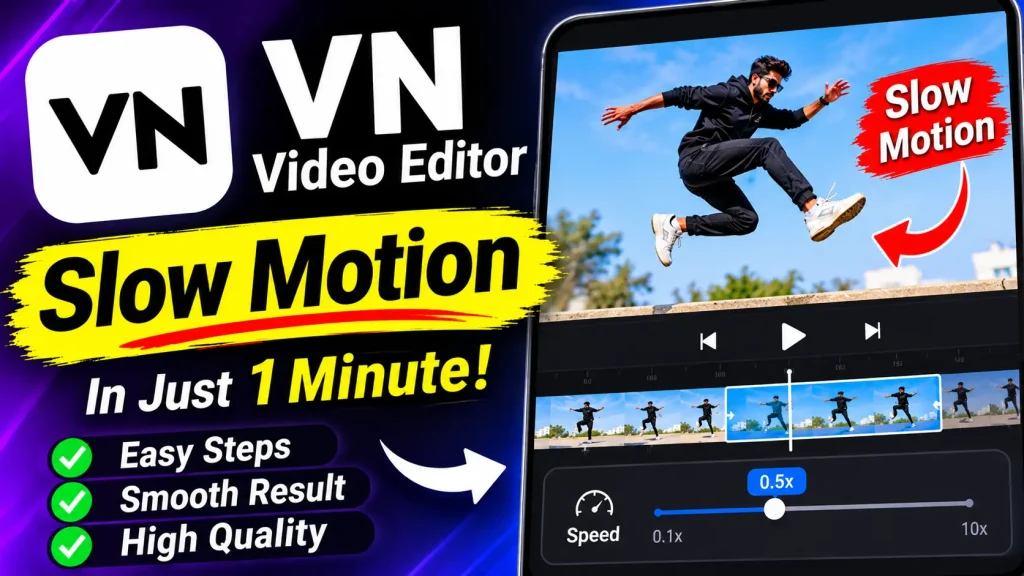
Slow-motion videos are a popular way to make ordinary moments look more creative and cinematic. Whether you are editing sports clips, travel videos, dance performances, action scenes, or social media content, slow motion can help highlight important details. With the right editing tools, you can turn a regular video into an attractive slow-motion clip.
VN Video Editor Slow Motion is a popular search among creators who want to adjust video speed and create smooth slow-motion effects using VN. The application provides speed-control tools that help users change how quickly or slowly their video clips play.
In this guide, you will learn how to create slow-motion videos in VN, adjust playback speed, use speed curves, and export your finished project.
What Is VN Video Editor Slow Motion?
VN Video Editor Slow Motion is an editing technique that reduces the playback speed of a video clip. When a video plays more slowly, individual movements become easier to notice.
For example, you can use slow motion to highlight a football kick, a person jumping, flowing water, a dance move, or a beautiful travel moment.
VN provides speed adjustment features that allow users to experiment with different playback speeds. The final smoothness depends on the original video’s frame rate, the selected speed, and the available editing options.
Main Features for Slow Motion Editing in VN
1. Video Speed Control
VN allows users to adjust the playback speed of video clips. You can slow down a clip or speed it up according to your editing requirements.
2. Speed Curve
Where supported by your app version, speed curve controls let you change playback speed at different points in a clip. This can create effects that move between normal speed, slow motion, and fast motion.
3. Timeline Editing
The editing timeline helps you select the exact part of a video that you want to slow down. You can trim clips and organize them before applying speed changes.
4. Smooth Transitions
Transitions can help connect slow-motion scenes with normal-speed clips. This makes the final video look more natural.
5. Audio Editing
You can add background music or sound effects to your project. Music can make slow-motion scenes more engaging.
6. Video Export Settings
VN provides export options for saving your finished video. Available resolution and frame-rate settings depend on your device and app version.
How to Make Slow Motion Videos in VN Video Editor
Follow these simple steps to create a slow-motion effect.
- Open the official VN Video Editor application.
- Tap the option to create a new project.
- Select the video you want to edit.
- Add the clip to the editing timeline.
- Select the video clip.
- Find the Speed option in the editing tools.
- Choose the available speed adjustment option.
- Reduce the playback speed to create a slow-motion effect.
- Preview the clip to check its smoothness.
- Adjust the speed until you get the result you want.
- Export the video using suitable settings.
The exact location and names of controls may vary between VN versions.
How to Use Speed Curves in VN
Speed curves can create more advanced slow-motion effects by changing the playback speed throughout a clip.
For example, you can begin a video at normal speed, slow down the most important movement, and return to normal speed afterward.
Follow these general steps:
- Open your project in VN.
- Select the video clip.
- Find the Speed or Curve option, if available.
- Choose a suitable speed curve.
- Adjust the curve points according to your preferred effect.
- Preview the complete clip.
- Make changes until the speed transitions look natural.
- Export your finished video.
Speed curves are useful for sports edits, cinematic clips, action videos, and creative social media content.
Best Tips for Smooth Slow Motion Videos
Creating smooth slow-motion footage is not only about reducing speed. The original recording quality also matters.
1. Record at a Higher Frame Rate
If your camera supports it, recording at 60 FPS or 120 FPS can provide more frames for slow-motion editing than standard 30 FPS footage.
2. Avoid Extremely Low Speeds
Reducing the playback speed too much can make a video look choppy, especially when the original footage has a low frame rate.
3. Choose the Right Moment
Slow motion works best when highlighting an important movement or action. Avoid slowing down every part of your video.
4. Use Suitable Music
Background music can improve the mood of a slow-motion scene. Choose music that matches the style and timing of your video.
5. Preview Before Exporting
Always watch the complete edited video before saving it. Check for sudden speed changes, choppy movements, and audio problems.
Best Uses of VN Slow Motion Effects
Sports Videos: Highlight important moments such as a football kick, basketball shot, or running movement.
Dance Videos: Show dance movements and choreography in greater detail.
Travel Videos: Create cinematic scenes featuring waterfalls, beaches, mountains, and beautiful landscapes.
Social Media Reels: Make short videos more engaging with carefully timed slow-motion moments.
Action Videos: Highlight jumps, tricks, and other fast movements.
Best Export Settings for Slow Motion Videos
Export settings can affect the quality of your finished project.
| Setting | Suggested Choice |
|---|---|
| Resolution | 1080p for most social videos |
| Frame rate | Match your project and source footage |
| Format | MP4, if available |
| Video quality | High, depending on storage |
| Aspect ratio | 9:16 for vertical Reels and Shorts |
The best settings depend on the original footage and the platform where you plan to publish the video.
Common Slow Motion Problems and Solutions
Slow Motion Video Looks Choppy
This may happen when the original footage has a low frame rate. Try using footage recorded at a higher frame rate and avoid extreme speed reductions.
Video Quality Becomes Poor
Check your export resolution and quality settings. Use the original video file instead of a heavily compressed copy.
VN Is Running Slowly
Close unnecessary background applications, check available storage, and restart the application.
Audio Does Not Match the Video
Changing playback speed can affect audio timing. Consider muting the original audio and adding suitable background music if needed.
Frequently Asked Questions
Can I make slow-motion videos in VN Video Editor?
Yes. VN provides speed adjustment tools that allow users to slow down video clips.
Is VN good for slow-motion editing?
VN can be useful for basic and creative slow-motion editing, especially for social media videos and personal projects.
How can I make slow motion smoother?
Use footage recorded at a higher frame rate, avoid excessive speed reduction, and preview your video before exporting.
Can I create slow motion for Instagram Reels?
Yes. You can create vertical slow-motion videos in VN and export them using suitable settings for Instagram Reels.
Does VN support speed curves?
VN offers speed-control features, including curve-based editing options in supported versions. Check your app’s current editing tools.
Is VN Video Editor free?
VN offers free editing features. Specific tools and availability may vary depending on the version and platform.
Final Words
VN Video Editor Slow Motion is a useful editing technique for creating attractive videos and highlighting important moments. With speed controls, curve adjustments, timeline editing, and suitable export settings, you can create slow-motion clips for sports, travel, dance, and social media content.
For the best results, record your footage at a higher frame rate whenever possible and avoid reducing speed too much. Experiment with different editing styles to create smooth and engaging videos with VN.